
How to Use ChatGPT for Excel: Learn Formulas, Data Cleaning, Pivot Tables and Data Analysis.

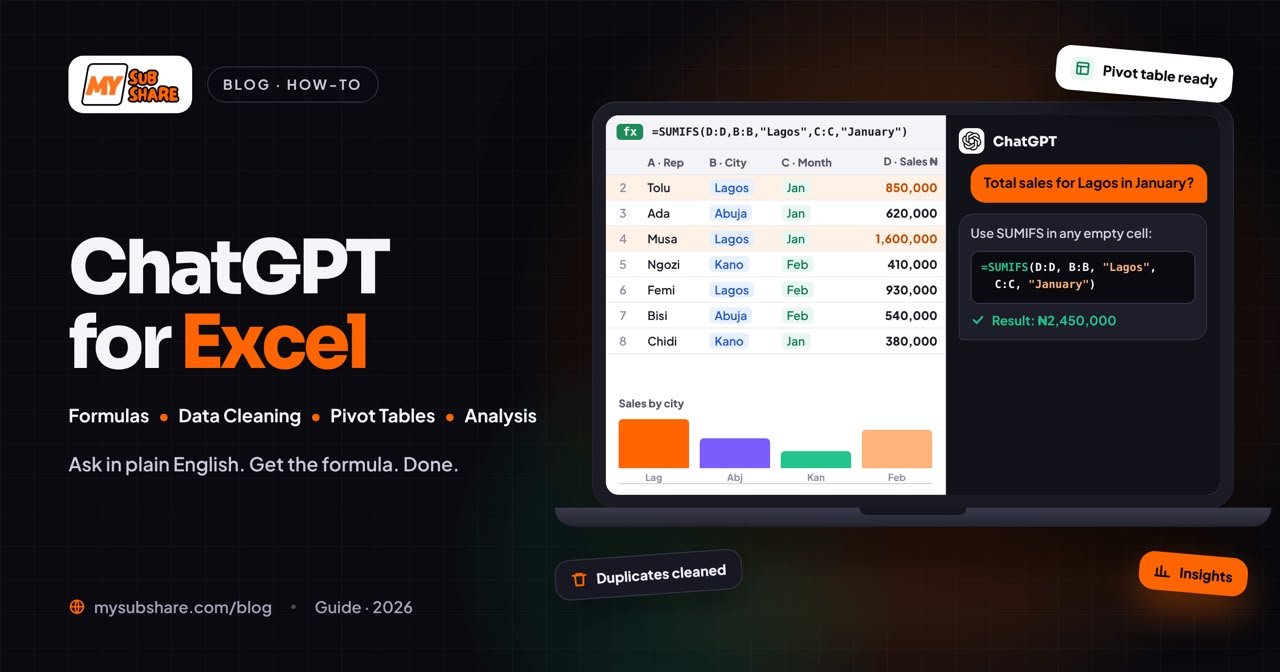
You can use ChatGPT for Excel in three ways. You can describe what you need and let it write the formula. You can upload your spreadsheet so it cleans, summarises and charts the data. Or you can install the official ChatGPT for Excel add-in, which works right inside your workbook. Each one turns hours of spreadsheet stress into a few minutes, as long as you give it clear prompts and double-check the results.
If Excel has ever made you feel like your brain was buffering, welcome. This guide gives you copy-and-paste prompts for formulas, data cleaning, pivot tables and analysis, the same tricks that have students finishing final-year projects faster.
3 ways to use ChatGPT with Excel
| Method | How it works | Best for |
|---|---|---|
| Chat prompts | Describe your columns and goal, then copy the formula into Excel | Quick formulas and explanations |
| Upload your file | Attach an .xlsx or .csv file and ask questions about it | Cleaning, summaries and charts |
| ChatGPT for Excel add-in | A sidebar inside Excel that reads and edits your workbook | Working directly in the spreadsheet |
Installing the add-in: in Excel (desktop or web), go to Home → Add-ins, search “ChatGPT”, add it, then sign in with your ChatGPT account. OpenAI made it available on all plans in May 2026, including free, though usage limits apply.
1. Use ChatGPT to write and explain Excel formulas
This is where most people start, and honestly, it’s a cheat code. The trick is to tell ChatGPT your exact column letters and what you want.
Prompt:
My sheet has Region in column B, Month in column C and Sales in column D. Write an Excel formula that totals sales for Lagos in January.
What you’ll get back:
=SUMIFS(D:D, B:B, "Lagos", C:C, "January")More prompts that work well:
- Lookups: “Find the price of the product in A2 from the Prices sheet, where product names are in column A and prices in column B. Show ‘Not found’ if it’s missing.” That should return
=XLOOKUP(A2, Prices!A:A, Prices!B:B, "Not found"). - Conditions: “If the sales in D2 are ₦50,000 or more, show ‘Bonus’, otherwise ‘No bonus’.” That should return
=IF(D2>=50000, "Bonus", "No bonus"). - Fixing errors: “This formula returns #N/A. Explain why and fix it,” then paste the formula.
- Explaining: “Explain this formula like I’m new to Excel,” then paste a long, scary formula from that inherited spreadsheet.
Pro tip: always mention your Excel version. Older versions don’t have XLOOKUP, so ask for INDEX/MATCH instead.
2. Clean messy data with ChatGPT
Real-life data is chaotic. You get extra spaces, names in ALL CAPS, duplicates, and phone numbers in five different formats. ChatGPT can sort it out in two ways.
Option A: get cleaning formulas.
- “Remove extra spaces and fix capitalisation for names in A2.” That gives
=PROPER(TRIM(A2)). - “Convert Nigerian phone numbers in A2 from 080… to the +234 format.” That gives
=IF(LEFT(A2,1)="0", "+234"&MID(A2,2,20), A2). - “Split full names in A2 into first name and last name columns.”
Option B: upload the file and let ChatGPT clean it.
Attach your spreadsheet and try:
Clean this file. Remove duplicate rows, trim spaces, make all dates DD/MM/YYYY, flag empty cells in the Email column, and give me the cleaned file to download. Then list every change you made.
Asking for a list of changes matters. It means you can check what ChatGPT did instead of trusting it blindly.
Before you upload, set your sheet up the way OpenAI recommends. Put clear column headers in the first row, keep one record per row, and remove empty rows or columns that split the data. Messy structure means messy answers.
3. Build pivot tables with ChatGPT’s help
Pivot tables look intimidating, but they’re just a fast way to summarise lots of rows. ChatGPT can help in two ways.
Plan the pivot in plain English. Paste your column names and ask:
My columns are Date, Region, Product, Salesperson and Amount. I want to see total sales by region for each month. Tell me exactly what to drag into Rows, Columns, Values and Filters in an Excel pivot table, step by step.
Then build it yourself in Excel:
- Click anywhere in your data.
- Go to Insert → PivotTable and choose a new sheet.
- Drag Region into Rows and Date into Columns, then group the dates by month.
- Drag Amount into Values. Make sure it says “Sum of Amount”, not “Count”.
Or skip straight to the answer. Upload the file and say “Create a pivot-style summary of total sales by region and month, and highlight the best and worst region.” ChatGPT builds the table and explains it. If you’re using the add-in, you can ask it to build the summary in a new sheet of your workbook.
4. Analyse data and make charts
This is where ChatGPT starts to feel like a data analyst on speed dial. After uploading a file, try:
- “Summarise this data in five bullet points. What’s the biggest trend?”
- “Which three products dropped the most from last quarter to this one?”
- “Find outliers in the Amount column and explain why they might be unusual.”
- “Make a bar chart of monthly sales and a pie chart of sales by region.”
- “Write a short report for my manager based on this data.”
Behind the scenes, ChatGPT runs Python code to work out the numbers rather than guessing them. Ask it to “show the code” if you want to check.
ChatGPT Free vs Plus for Excel work: which do you need?
The free plan is fine for writing formulas. The limits show up once you start uploading files. According to OpenAI, free users can upload only 3 files a day, while paid users can upload up to 80 files every three hours. If you clean or analyse spreadsheets regularly, you’ll hit that free limit fast, often in the middle of a task.
ChatGPT Plus costs about ₦31,500 a month if you pay OpenAI directly from Nigeria. On MySubShare, you can get ChatGPT Plus for ₦5,200 a month and pay in naira by bank transfer. The FAQ explains how payment and access work.
Want to compare tools? Claude AI Pro is great with long files and explaining logic. If your team lives in Google Sheets, Google AI Pro (the Gemini app) is worth a look. Both are on MySubShare too.
Mistakes to avoid when using ChatGPT with Excel
- Not checking the numbers. Even Microsoft’s add-in listing tells you to verify important numbers and formulas. Spot-check a few rows by hand.
- Vague prompts. “Help with my sheet” gets vague answers. Give column letters, what you want, and an example of the result.
- Uploading sensitive data. Think twice before uploading salaries, customer bank details or anything confidential. Remove or mask sensitive columns first.
- Ignoring your Excel version. Some functions, like XLOOKUP, FILTER and UNIQUE, don’t exist in older versions.
- Messy structure. Merged cells, several tables on one sheet, and blank rows all confuse the analysis.
FAQs about using ChatGPT for Excel
Is there an official ChatGPT add-in for Excel? Yes. OpenAI’s ChatGPT for Excel add-in has been available on all ChatGPT plans since May 2026. Install it from Home → Add-ins in Excel.
Can ChatGPT read my Excel file? Yes. You can upload .xlsx, .xls or .csv files, and ChatGPT can summarise them, clean them, chart them and answer questions about the data.
Can free ChatGPT do data analysis? Yes, but free users are limited to three file uploads a day, which runs out quickly if you work with spreadsheets often.
What are the best ChatGPT prompts for Excel formulas? Name the column letters, describe the result you want, and mention your Excel version. For example: “Column B has regions and D has sales. Write a formula to total sales for Lagos.”
Can ChatGPT create pivot tables? It can tell you exactly how to set one up, create pivot-style summaries from uploaded files, and, through the add-in, build summaries inside your workbook.
Final thoughts
You don’t need to memorise 400 Excel functions anymore. You just need to know how to ask. Start with formulas, move on to cleaning and analysis, and let ChatGPT handle the boring parts while you focus on what the numbers actually mean. Once you’re comfortable, use the same skills to create and sell digital products with ChatGPT, like Excel templates and budget trackers. And if you want all your AI tools without dollar-card stress, MySubShare has you covered.
Get the subscriptions in this article for less
You might also be interested in
 Best Subscription-Sharing Platform in Nigeria: How to Get Netflix, ChatGPT, Canva Pro and More for Less23 Nov 2026
 How to Get Cheap Netflix Premium HD in Nigeria (2026): Pay in Naira & Save on Netflix Premium HD21 Nov 2026
 How to Get Cheap YouTube Premium in Nigeria (2026): Pay in Naira & Save on YouTube Premium20 Nov 2026
Guides, launches and deals, straight to your inbox when we publish. No spam, unsubscribe any time.